Chapter 4 of 6 · Monitor & group values
See what happens on the bus.
Follow telegrams, narrow down the display and mark important moments. Check devices for reachability. Read group values and – after confirmation – write them with intent.
01
Find the right interface
The bus tools use a KNXnet/IP interface. In the bus settings, KNX Atlas discovers interfaces on the local network; host and port can also be entered by hand.
The app shows the tunnel slots reported by the interface and suggests a usable one. Occupied or unsuitable slots are shown as such.
02
Watch without sending
The monitor works as group or bus monitor. The live list can be searched and filtered; with an open project, the names of group addresses appear. The monitor also works without a project.
Start and stop
Open the connection on purpose and release it again.
Pause the display
Freeze the list to read it – receiving continues.
Marks
Tag moments in the history with your own note.
CSV export
Export the history with or without project information.
03
Find important moments again
A mark pins a moment in the telegram history – for example when you press a push button and want to place the reaction in time.
The CSV export takes the shown columns and, if you want, the marks. Whether project information such as group address names or decrypted secure content is included is your explicit choice when exporting.
04
Check reachability on purpose
From the device view you check a single device, from the topology all devices of a line – up to 64 devices per run. The results show reachability, mask version and programming mode where available.
A missing answer stays visible as such. The check only reads; it does not put a device into programming mode and does not replace an electrical test.
05
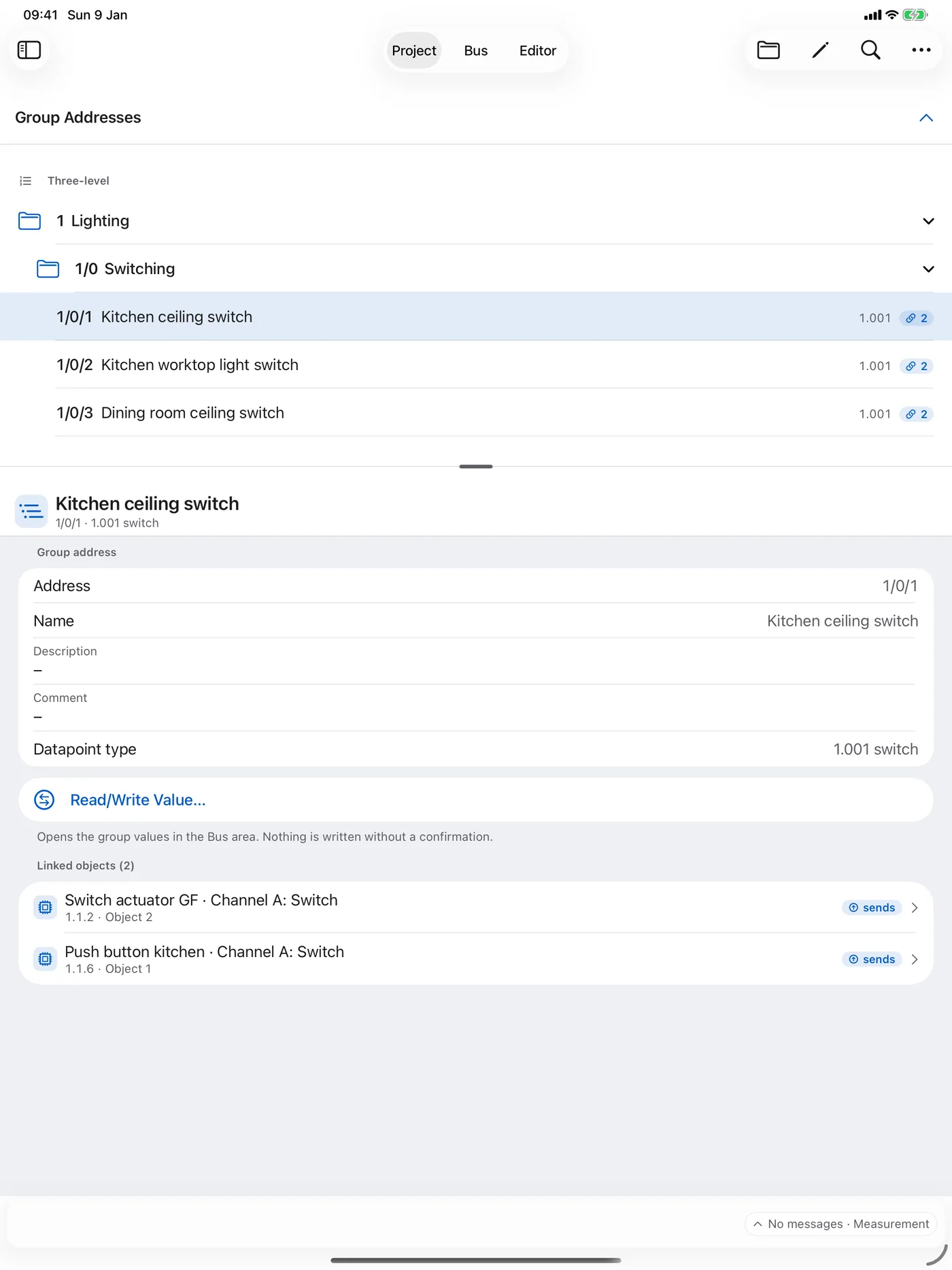
Read group values and write them with intent
You choose group addresses from the project or enter them by hand. “Read” requests the current value; whether an answer arrives depends on the devices and their flags.
Input adapts to the datapoint type: choices for switching values, number fields with limits and units, separate fields for composite values. “Write …” prepares the write; the confirmation dialog shows the target address, a value preview and the data to be sent.
Nothing is sent until you press “Send”. Cancelling or closing sends nothing, and the Return key does not trigger the send step. A prepared write is time-limited and can be used only once.
06
When several tools work at once
Group monitor and group values can run in parallel if the interface provides separate tunnels. That way you see request and response together.
If the interface refuses a second tunnel, KNX Atlas offers to switch to a single connection. The running monitor is stopped only after your choice.
Frequently asked questions
Why doesn’t the app find my interface?
Check that your device can reach the interface on the local network and that KNX Atlas has local network access. If discovery finds nothing, enter host and port by hand in the bus settings.
What is the difference between pause and stop?
“Pause” only freezes the display; the monitor keeps receiving and keeps its tunnel. “Stop” ends receiving and releases the connection.
Why do I get no value after “Read”?
A read request returns a value only if a device at this group address answers – that depends on its configuration and flags. Check the target address, the session messages and the telegram history in the monitor.
When is an entered value actually sent?
Only after you confirm with “Send”. Before that, the app checks the input and shows target, preview and data in the dialog.