Chapter 1 of 6 · Explore projects
Understand the installation. Down to the detail.
Topology, line plan, buildings, devices and group addresses are different ways into the same project. KNX Atlas keeps the connections in view as you move between them.
01
Start with the project you have
KNX Atlas opens ETS6 project files (.knxproj). For a password-protected project you enter its password; if you like, the app remembers it in the device’s Keychain. The project is processed right inside the app – no ETS installation or Windows computer is needed.
The start screen offers opening a file and a list of recent projects, so you can return to a known project without going through the file dialog each time.
02
Several ways through the same installation
Sometimes you know the individual address, sometimes only the room or the device name. The project views let you start with whatever you have – and all of them lead to the same details.
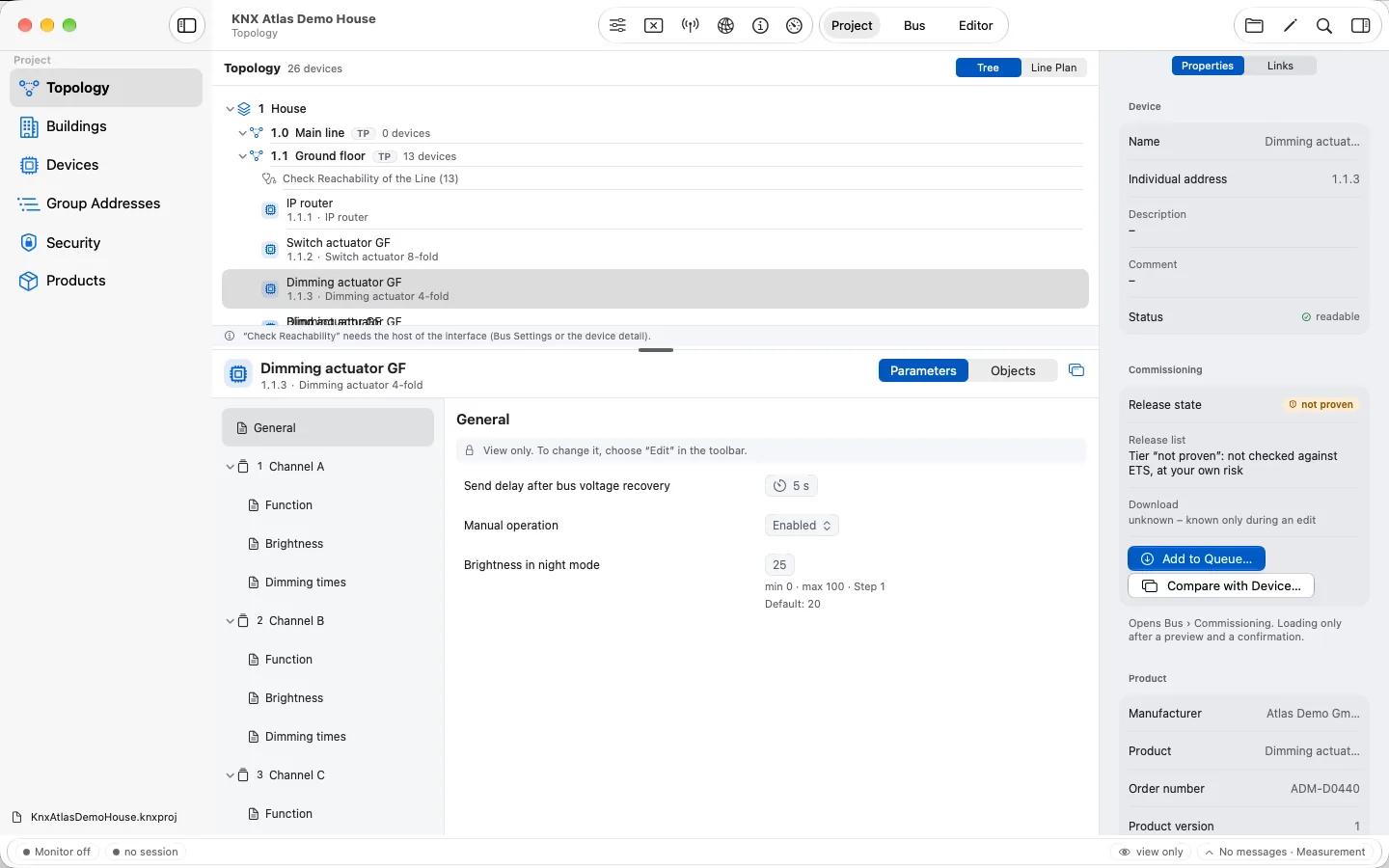
Topology
Areas and lines as a tree – the technical way to the devices.
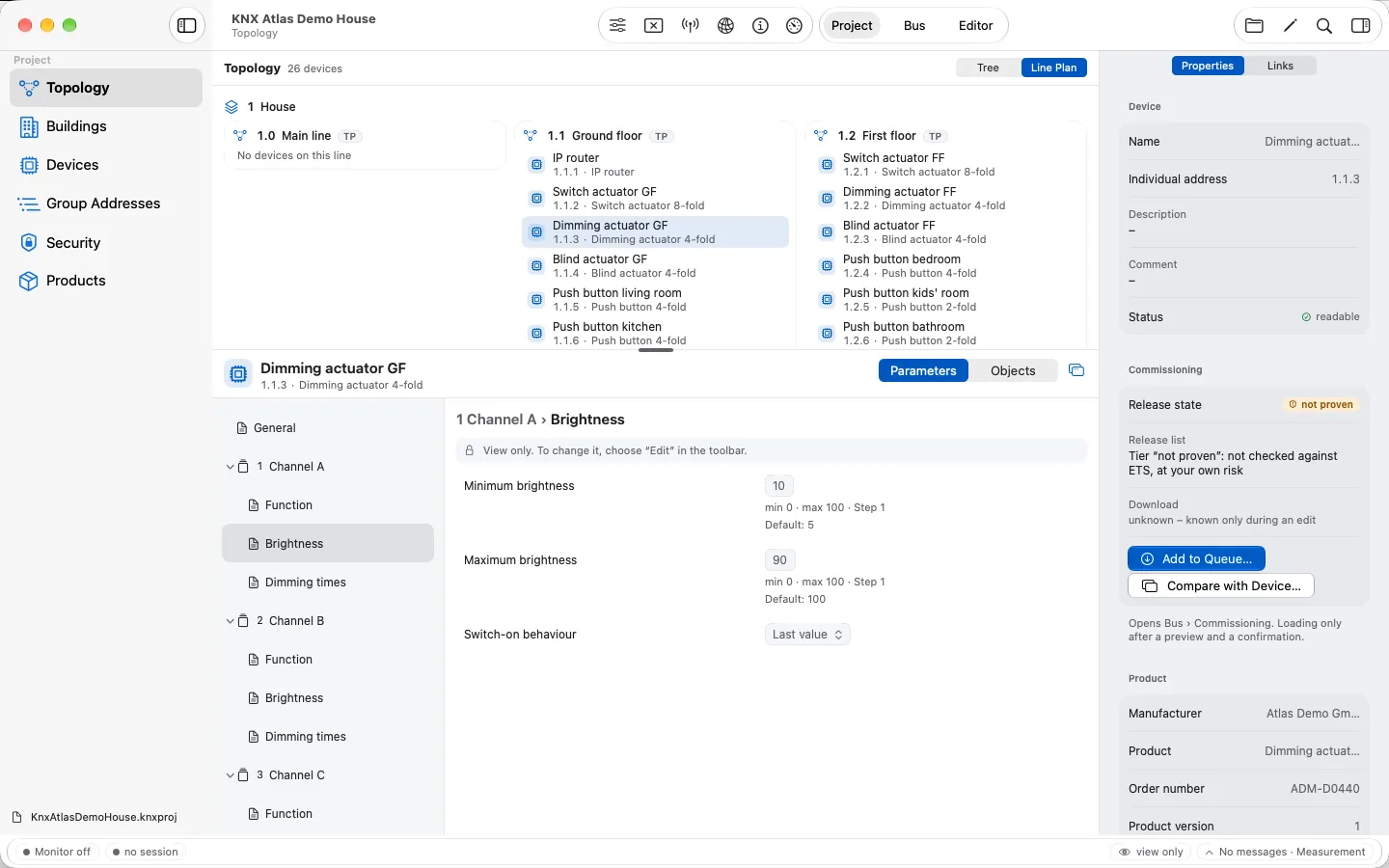
Line plan
The same topology as a plan with lines side by side.
Buildings
Buildings, floors and rooms for spatial orientation.
Devices
A direct list with address, product, application and status.
Group addresses
Addresses with datapoint type and linked objects.
Security
Interfaces, tunnels and secure group addresses of the project.
03
From a device to its functions
The device view connects the overview, parameter pages and communication objects. Parameters appear in the structure of the product data – with range, step and default. Depending on the type, you get a choice, a switch or a value field.
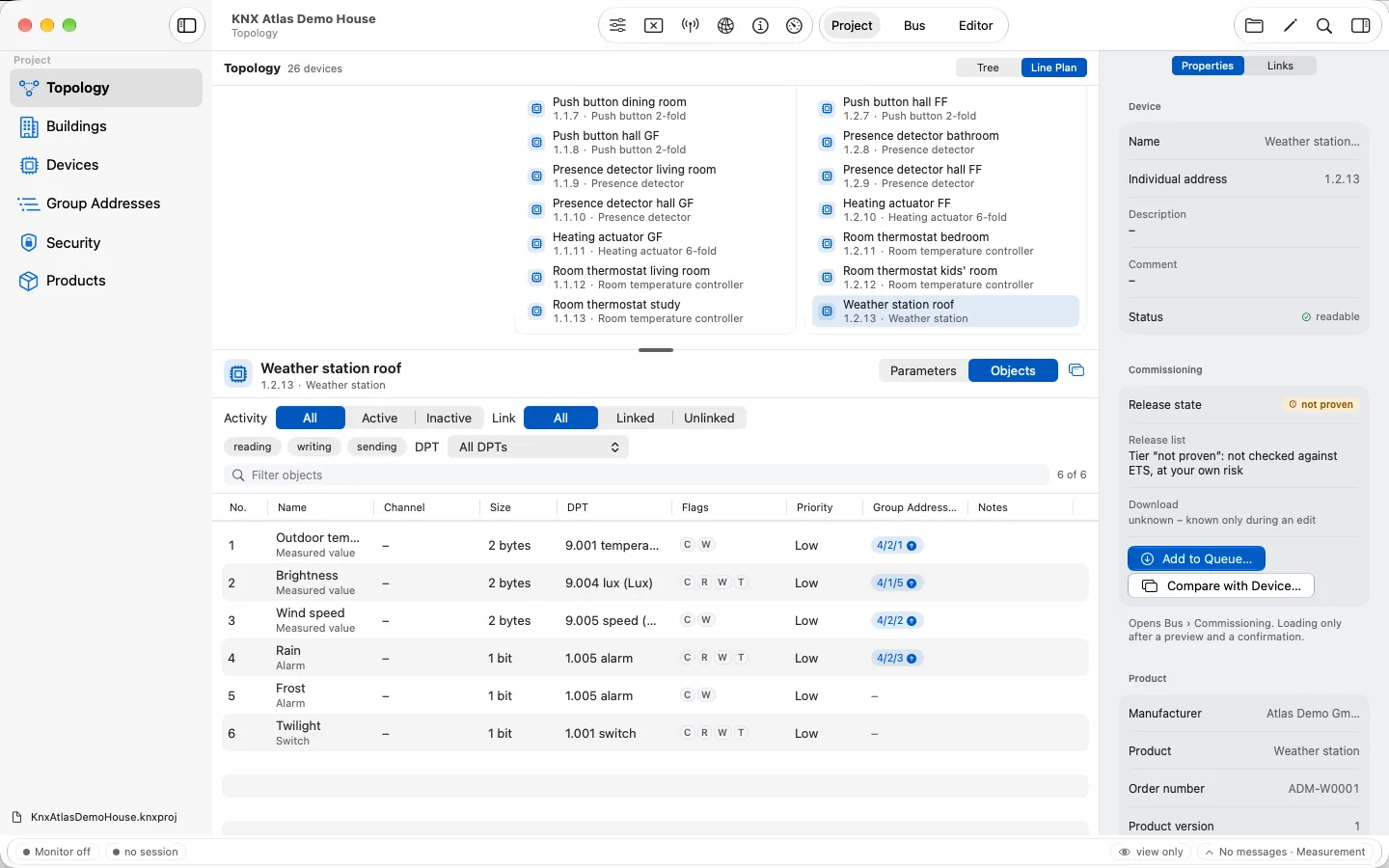
For communication objects, filters narrow the list: active or inactive, linked or unlinked, reading, writing or transmitting, by datapoint type. Linked group addresses show how an object is tied into the project.
On the Mac, the device inspector keeps properties and links next to the workspace, and a device can open in its own window. On the iPhone, overview, parameters and objects are segments.
04
Search, select, carry on
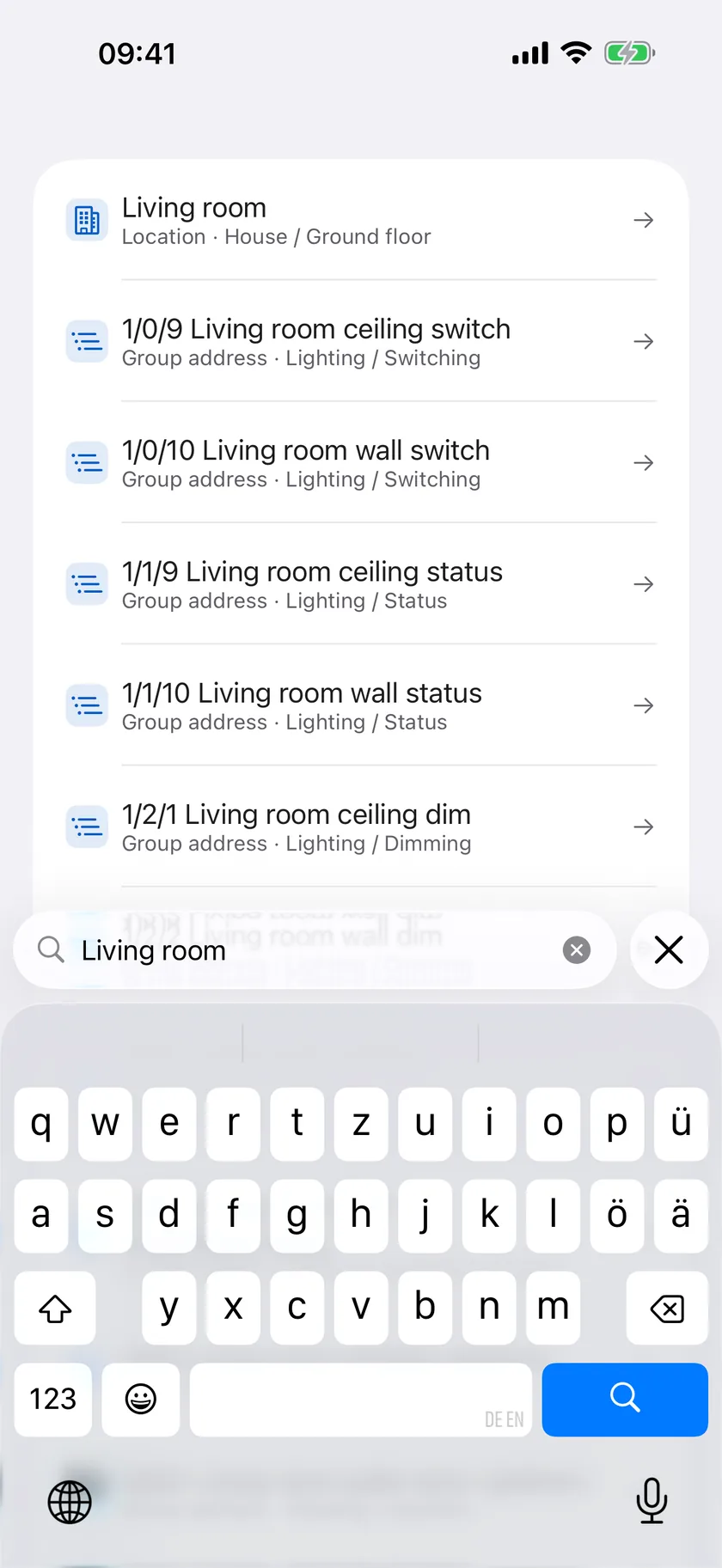
Search spans rooms, devices and group addresses. On the Mac you open it as a palette from the keyboard, on iPad and iPhone with the search button. A result takes you straight to the right place in the project.
KNX Atlas organises the work in three areas: Project, Bus and Editor. On the Mac, menu commands and keyboard shortcuts complement the navigation; on the iPhone the areas are tabs, each with its own navigation.
05
Project knowledge is not the live state
The project view shows the information from your file. It therefore works without a connection to the KNX installation – in the office, on the train or before meeting a client.
A device in the file is not automatically reachable on the bus, and a parameter in the project does not prove that exactly this setting is loaded in the device. For live telegrams, group values, reachability and comparing with the device, there are the bus tools.
Frequently asked questions
Where do I get the project file of my installation?
You need the .knxproj file exported from your installation’s ETS project. If you don’t have it, ask the integrator or company that looks after the installation. For a password-protected file you also need the project password.
Can I look at a project away from the building?
Yes. Topology, buildings, devices, parameters and links come from the saved project file and are available without a connection to the installation. Current telegrams and group values need a bus connection.
Does the project view show the settings in the device?
It shows the settings from the opened file. They can differ from the actual state, for example if someone later worked with a different version of the project. With “Compare with Device…”, KNX Atlas reads a device back and compares it with the project.