Chapter 3 of 6 · Commissioning
Load devices. With preview, backup and comparison.
KNX Atlas loads the application, parameters and tables of a device from your project – with a preview before, a backup of the device memory and a comparison after. Programming individual addresses and partial downloads complete the picture.
01
Choose devices and queue them
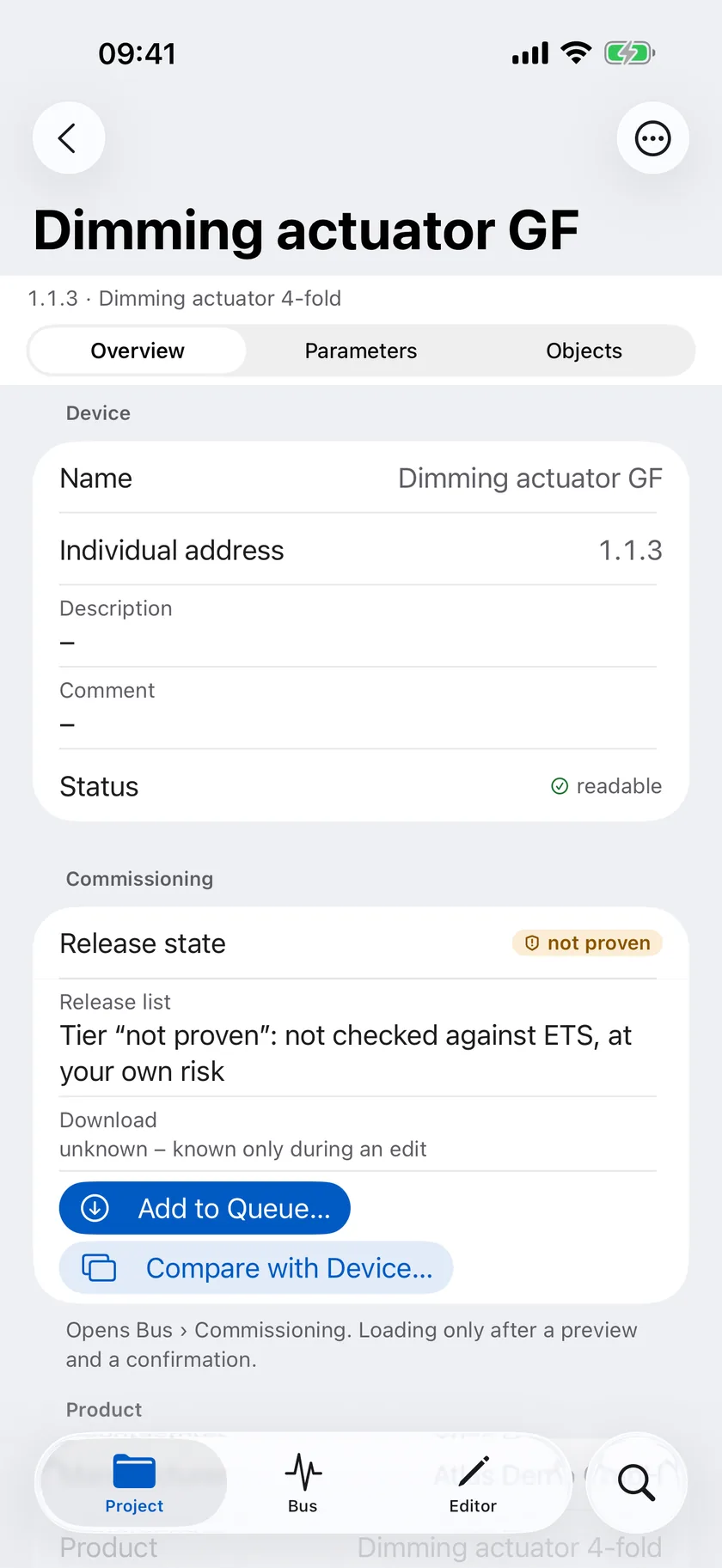
Each device shows a “Commissioning” section in its overview: the release state of its application, the known download state and the buttons “Add to Queue…” and “Compare with Device…”. Everything comes together under Bus › Commissioning.
The queue is the loading order: one device after another, each with its own preview. You can reorder or remove devices before anything is sent.
02
Preview first, then load
Before anything is written, KNX Atlas builds a preview: target device and application, interface and tunnel, the scope of the download, each step with its effect, and the expected duration.
Steps that only read are marked “writes nothing”. A marker shows from which step on the device is changed. The preview is valid for a limited time – loading starts only after your explicit confirmation.
03
Back up, load, read back
A download follows a fixed sequence that the app shows step by step. It ends not with a mere “done”, but with a result you can follow.
Backup
The relevant device memory is backed up before loading.
Load
Application, parameters and tables are written in the order ETS uses.
Read back
The device is read after loading.
Compare
Project and device are compared – ideally with the result “identical”.
Download state
The state is recorded in the project and saved with “Save As…”.
04
When something goes wrong
A running job can be cancelled right away or after the current device. The report honestly says whether the device was already changed, which steps ran and what to do next.
The backup taken before loading offers a way back: KNX Atlas can write the saved state back into the device. If one device fails, the rest of the queue is not simply loaded anyway.
05
Proven or at your own risk
Not every application is equally well covered. Applications whose loading sequence is proven to match the one of ETS are on a release list and count as “proven”.
Other applications are “not proven”: they can be loaded only after an additional confirmation, at your own risk – with backup and readback like every other device. What cannot be loaded at all is refused with a reason.
06
Individual address and partial download
With “Program Address…”, KNX Atlas assigns the individual address to a device in programming mode. The app first checks that exactly one device is in programming mode and programs only after confirmation.
If only the group communication has changed, a partial download of the address and association tables is enough for supported device profiles. Where that is not possible, the app loads in full and gives the reason.
07
Over KNX IP Secure and with KNX Data Secure
Downloads also run over secure KNX IP Secure tunnels. As in ETS, KNX Atlas can optionally log in to the interface as management user.
KNX Atlas loads KNX Data Secure devices the way ETS does: the first time with the device certificate (FDSK), afterwards with the project’s tool key. You type or paste the FDSK, or scan its QR code with the camera on iPad and iPhone. It stays in memory for the session only and is never stored or shown – you only see a four-character identifier.
Loading Data Secure devices is currently offered only for applications whose sequence has been verified. The app marks the release state at each device.
Frequently asked questions
What happens if loading stops?
The report shows whether the device was already changed and which steps ran. With the backup taken before, you can write the earlier state back into the device. The rest of the queue is not loaded without asking.
What does “not proven” mean?
For these applications it is not proven that the loading sequence matches the one of ETS. You can still load them – after an additional confirmation, at your own risk and with backup and readback.
Can I only compare a device without loading it?
Yes. “Compare with Device…” reads the device back and compares it with the project without writing anything.
Is the FDSK of a Data Secure device stored?
No. The FDSK is kept in memory for the current session only and is never shown, logged or stored. As with ETS, only the fact that the tool key was loaded is written into the project.